

This guide is in English for now. The tool itself works in your language.
Nivesh Sahayak App › Help › Getting started
First-run setup of the installed App
When you open the installed App for the first time it asks a few questions, so that the menu shows only what your business needs. A shop does not need production; a manufacturer does. Nothing is locked: everything can be switched on later.
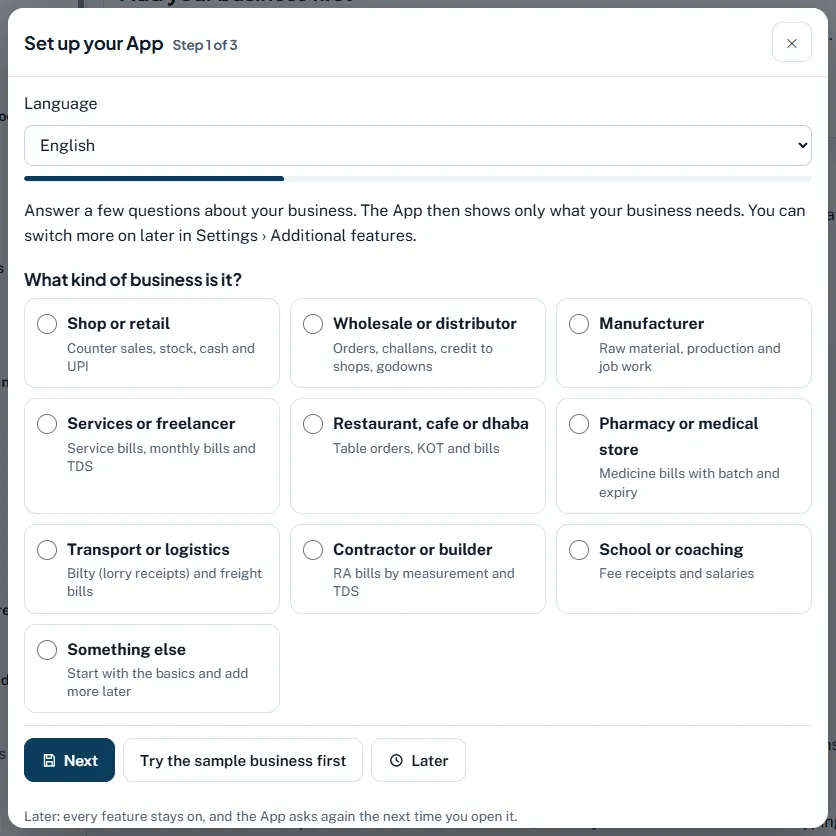
The three steps
- Step 1 of 3: What kind of business is it? Pick your Language at the top if you like. Then choose one of ten: Shop or retail, Wholesale or distributor, Manufacturer, Services or freelancer, Restaurant, cafe or dhaba, Pharmacy or medical store, Transport or logistics, Contractor or builder, School or coaching, or Something else. Not sure yet? Press Try the sample business first.
- Step 2 of 3: About your business. Fill in Who owns the business? (proprietor, partnership firm, LLP, company or trust/society), the business name, state and GST registration. Address, GSTIN, bank, UPI and logo are optional (Optional: you can also add these later in My data). If you type a GSTIN, the details can be filled from the GST portal. If the business is already saved, the App says We found … in your saved data: just check it.
- Step 3 of 3: Features for your business. The features recommended for your type of business are already switched on and marked Recommended. Switch off what you do not need, switch on what you want, then press Start using the App.
Worked example
A wholesale distributor who is GST registered chooses Wholesale or distributor. Step 3 then switches on: purchases and expenses, cash and bank books, reports, orders and challans, stock, godowns, cheques, bank reconciliation, group reports, salesmen, e-invoice and e-way bill, and the GST returns tools. Production and job work stay off, so they do not crowd the menu.
| Type of business | Switched on at the start (besides purchases, books and reports) |
|---|---|
| Shop or retail | Stock, barcode, khata, cheques, billing counter (POS) |
| Manufacturer | Orders, stock, godowns, production, job work, manufacturing account, final accounts, cheques, bank reconciliation, e-invoice |
| Services or freelancer | Repeating bills, TDS, bank reconciliation |
| Contractor or builder | RA bills, orders, TDS, cheques, fixed assets |
| School or coaching | Fee receipts, salary slips, repeating bills |
A partnership, LLP, company or trust also gets final accounts; a company also gets fixed assets, journal entries and year end. A composition dealer gets CMP-08 instead of e-invoice.
Common mistakes and how to fix them
- Pressing ✕ or Later and thinking the setup is lost. Later only skips it for now; it comes back next time. You can also change everything in Settings › Additional features.
- Worrying that "off" deletes data. Switching a feature off only hides it from the menu, quick buttons and search. Records stay and the accounts still count them.
- Setup does not appear in the browser tab. It is only for the installed App. In a browser tab every screen is shown.